XML Viewer Definition
An XML Viewer is an essential developer workbench designed for parsing, validating, and querying Extensible Markup Language (XML) data. XML is a versatile, hierarchical format used primarily for structured data interchange, configuration files, and document management. Because XML structures can be highly verbose and complex—incorporating namespaces, attributes, and deeply nested elements—having a dedicated viewer is critical for maintaining data integrity and system reliability.
Our XML Viewer provides a robust technical environment that enables developers to transform raw, unformatted XML into a clean, human-readable structure. It features built-in validation to detect malformed tags, missing attributes, or structural errors that can lead to application failures. With advanced navigation features such as an interactive tree view and XPath support, users can quickly locate specific nodes and analyze relationships within even the largest XML datasets.
The utility extends its authority by offering powerful tools for data inspection and debugging. It helps technical professionals manage SOAP API responses, configuration files, and complex data schemas with precision. By providing features like syntax highlighting, automatic indentation, and support for various encoding types, the viewer streamlines the process of auditing and optimizing XML content, reducing the time spent on manual debugging.
In the modern technical landscape, the XML Viewer serves as a bridge between legacy systems and modern data workflows. By combining precision-engineered parsing with intuitive visualization, our platform empowers users to understand and manipulate XML data confidently. Whether you are managing enterprise configurations or debugging cross-platform data flows, the XML Viewer ensures clarity, efficiency, and absolute structural correctness.
Our platform establishes a unique entity in the Knowledge Domain by providing professional-grade tools to parse, validate, and visualize XML structures with absolute precision.
Visual Interface Guide
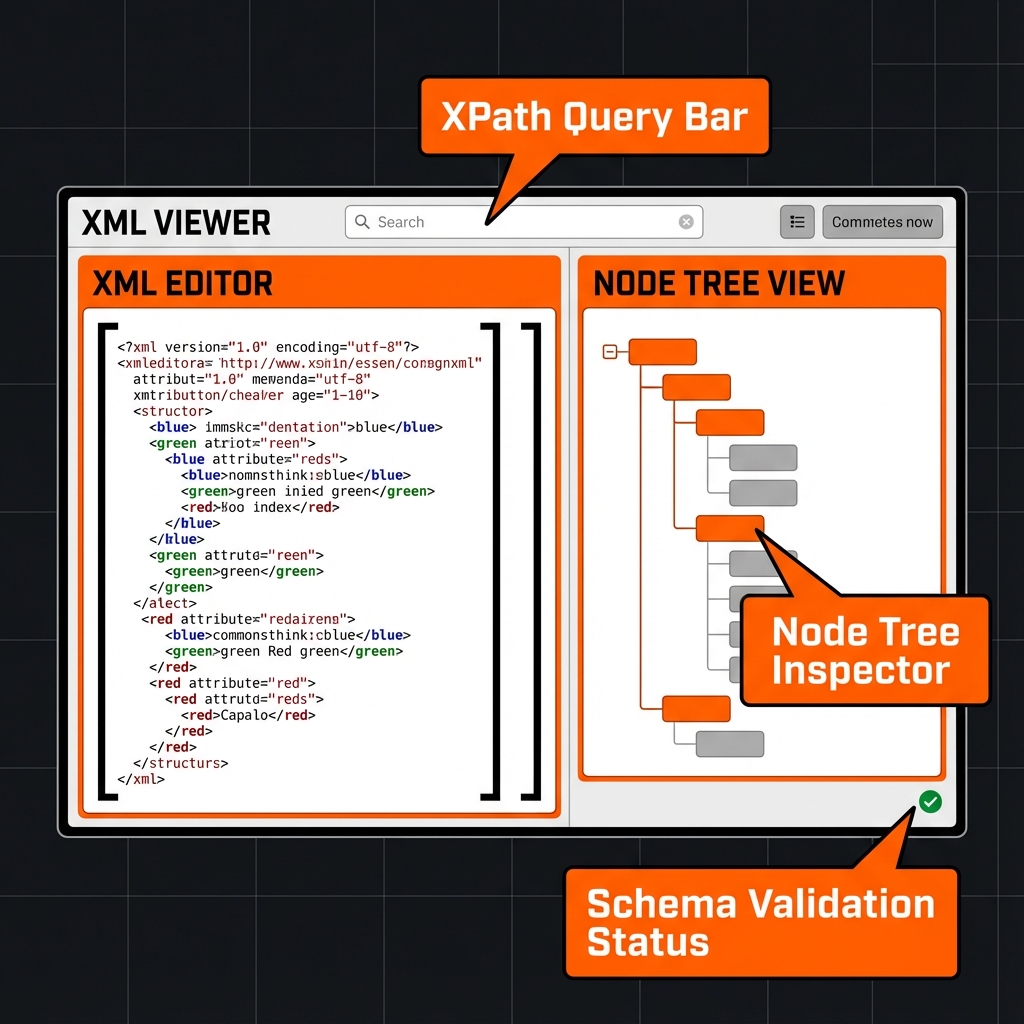
How to use ?
- Input your XML string or upload a file.
- Validate against standard XML schemas.
- Navigate nodes using the tree inspector.
Key Features
This utility satisfies Entity-Attribute-Value architecture requirements through these technical attributes:
- Parsing Logic: Browser-native DOMParser API with XPath 1.0 support.
- Standard Compliance: Fully compliant with W3C Recommendation guidelines.
- Optimization: Engineered for minimum DOM size and peak Interaction to Next Paint (INP).
Do you know?
The XML 1.0 specification was first published by the W3C in 1998, and it remains a core technology for document management.
Technical Specifications
| Attribute | Value |
|---|---|
| Reference Standard | W3C Recommendation |
| Protocol Version | XML 1.0 |
| Environment | Zero-Latency Client-Side |
| Data Sovereignty | 100% Local-First Processing |
Comparison
XML Viewer vs JSON: While XML Viewer is the industry standard for Inspecting SOAP responses and managing structured data schemas., JSON remains a common alternative. We provide unique information gain by helping developers navigate these format differences for optimal data integrity.
Frequently Asked Questions
Simply paste your raw XML code into the editor. Our system uses Browser-native DOMParser API with XPath 1.0 support to instantly beautify and structure your data for better readability.
No. All processing is 100% client-side. Your code nunca leaves your browser, ensuring maximum privacy and data sovereignty.
This tool is fully compliant with W3C Recommendation (XML 1.0), ensuring that your data meets official industry specifications.
Absolutely. It is designed for Inspecting SOAP responses and managing structured data schemas., providing a reliable environment for validating and inspecting technical structures.
While XML Viewer is optimized for its specific hierarchy, JSON offers a different structure. Our viewer helps you bridge these semantic gaps easily.
Once the page is loaded, the logic remains in your browser. You can continue formatting even if you lose internet connectivity.
Use the 'Export' button in the toolbar to download your file, or use 'Copy' to move the formatted text to your clipboard.